How to Prevent Laptop Boot Issues: Troubleshooting Start Problems and Practical Fixes
Laptop boot issues can stop your day before it starts. Whether you're trying to join a meeting or finish work, that frozen screen or error message can throw off your schedule fast. At Dave’s Computers in New Jersey, we’ve helped hundreds of people fix frustrating startup failures, often with simple checks that most users overlook.This guide breaks down how to prevent laptop boot issues and offers straightforward steps to fix and prevent them.
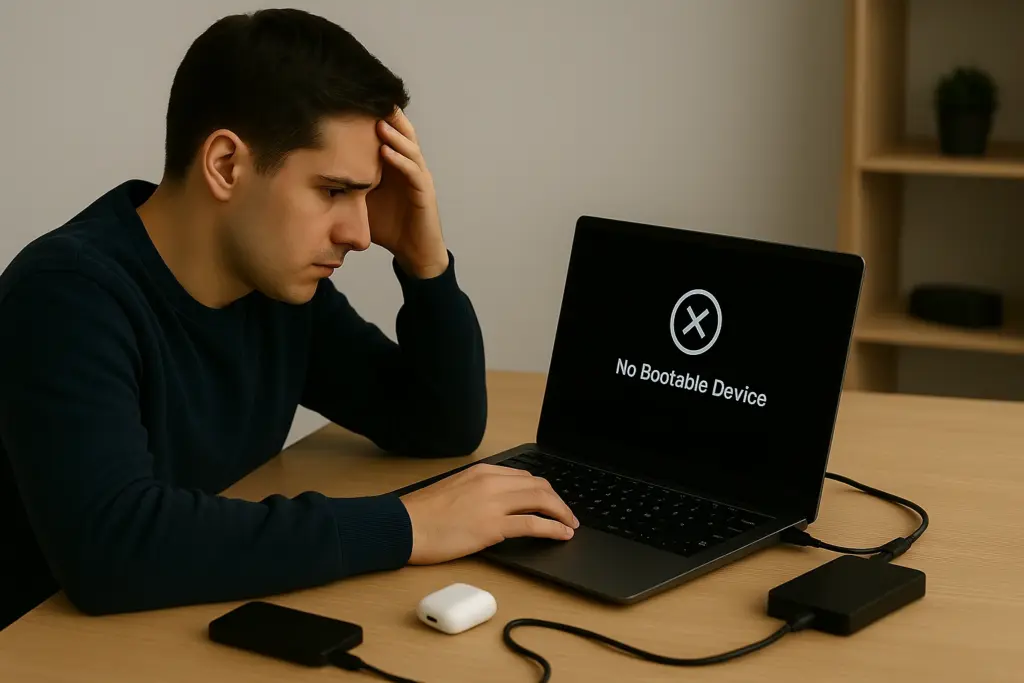
Common Reasons Laptops Fail to Start
Boot issues can come out of nowhere. One day your laptop works fine, and the next it refuses to power on or gets stuck on a loading screen. Often, the root cause isn’t complex hardware failure, it’s something small and easy to fix.Some of the most common causes of laptop boot issues include hardware conflicts and drive-related failures. As explained in our guide on how to extend laptop hard drive life, storage problems often go unnoticed until it's too late:
-
Boot order errors in BIOS
-
Conflicts from external USB devices
-
Faulty or drained batteries
-
Damaged power adapters
-
Failing hard drives or corrupted boot sectors
Disconnect External Devices Before Starting
Many boot failures come from external devices confusing your system. USB drives, hard drives, or even adapters can interfere with how your laptop boots. If your computer tries to start from a flash drive instead of your internal storage, it might stall or freeze.What You Can Do:
- Unplug all external USB devices before you start your laptop.
- Only keep essential hardware connected.
- Check your BIOS boot order (more on that below) to make sure the internal drive is listed first.
- If you still get an error, test each external device one at a time to rule out a faulty item.
Always Check the Power Source First
One of the most overlooked causes of a non-booting laptop is the power source. It’s easy to assume something major is wrong when the screen stays black, but sometimes it’s just a bad adapter or dead battery.Troubleshooting Power Issues:
- Make sure the power cable is firmly plugged in.
- Try a different outlet.
- Inspect the charger for damage.
- Listen for startup sounds like fans or drives spinning.
- Try holding the power button for 10 seconds to force a reset.
- If the battery is removable, try starting with just the adapter—or just the battery—to
- narrow it down.
Check and Update BIOS Settings
If your laptop powers on but won’t reach the operating system, your BIOS settings could be the culprit. BIOS controls how your system starts and which device it boots from first. If your internal drive isn’t prioritized, your system may try to boot from an empty or faulty drive.Steps to Fix BIOS-Related Boot Problems:
1.Restart your laptop and press the BIOS key (often F2, Del, or Esc). 2. Navigate to the boot order or boot priority menu. 3. Move your main hard drive or SSD to the top of the list. 4. Save changes and exit BIOS. For newer systems with UEFI, the steps may vary slightly. Look for settings related to boot mode, legacy support, or secure boot.Consider a BIOS Update:
If your BIOS is outdated, it may not work well with newer hardware or updated storage drives. Manufacturers often release updates that fix bugs or improve system stability. Follow official instructions or consult our team at Dave’s Computers for help with the process.Look Out for Failing Drives
When your laptop starts but can't load Windows, the issue might be with your storage drive. A corrupted hard drive or SSD can prevent your system from locating the files it needs to boot.Warning Signs:
- Frequent freezing at startup
- "No boot device found" messages
- Clicking sounds from the hard drive
- Blue screen errors after loading
Use Windows Recovery Options
If your laptop starts but gets stuck during Windows loading, try using built-in recovery tools. These options can fix corrupt files, repair the bootloader, or roll back recent updates.Windows Recovery Tools:
- Startup Repair – Attempts to fix problems that prevent Windows from booting.
- System Restore – Rolls back your system to a previous working state.
- Command Prompt – Useful for advanced users to run bootrec commands.
- Reset This PC – Reinstalls Windows while keeping or removing your files.
Prevent Future Boot Problems
Fixing your current issue is important, but preventing the next one matters even more. Use these tips to avoid repeat startup failures:- Update BIOS and Windows regularly to stay protected against bugs and compatibility issues.
- Back up your data in case your drive fails.
- Keep your laptop clean—dust can lead to overheating, which damages components.
- Avoid sudden shutdowns or forcing power-offs.
- Invest in a surge protector to shield your laptop from power spikes.
Need Help? Dave’s Computers Is Here for You
Laptop won’t start? Don’t panic. Whether it’s a power issue, BIOS misconfiguration, or failing hard drive, the experts at Dave’s Computers can help you troubleshoot quickly and get back online fast. We offer:- Same-day diagnostics
- Power and boot repairs
- Data recovery services
- BIOS updates and settings optimization
- Remote and in-store support